What Is a Google Workspace to Microsoft 365 Migration?
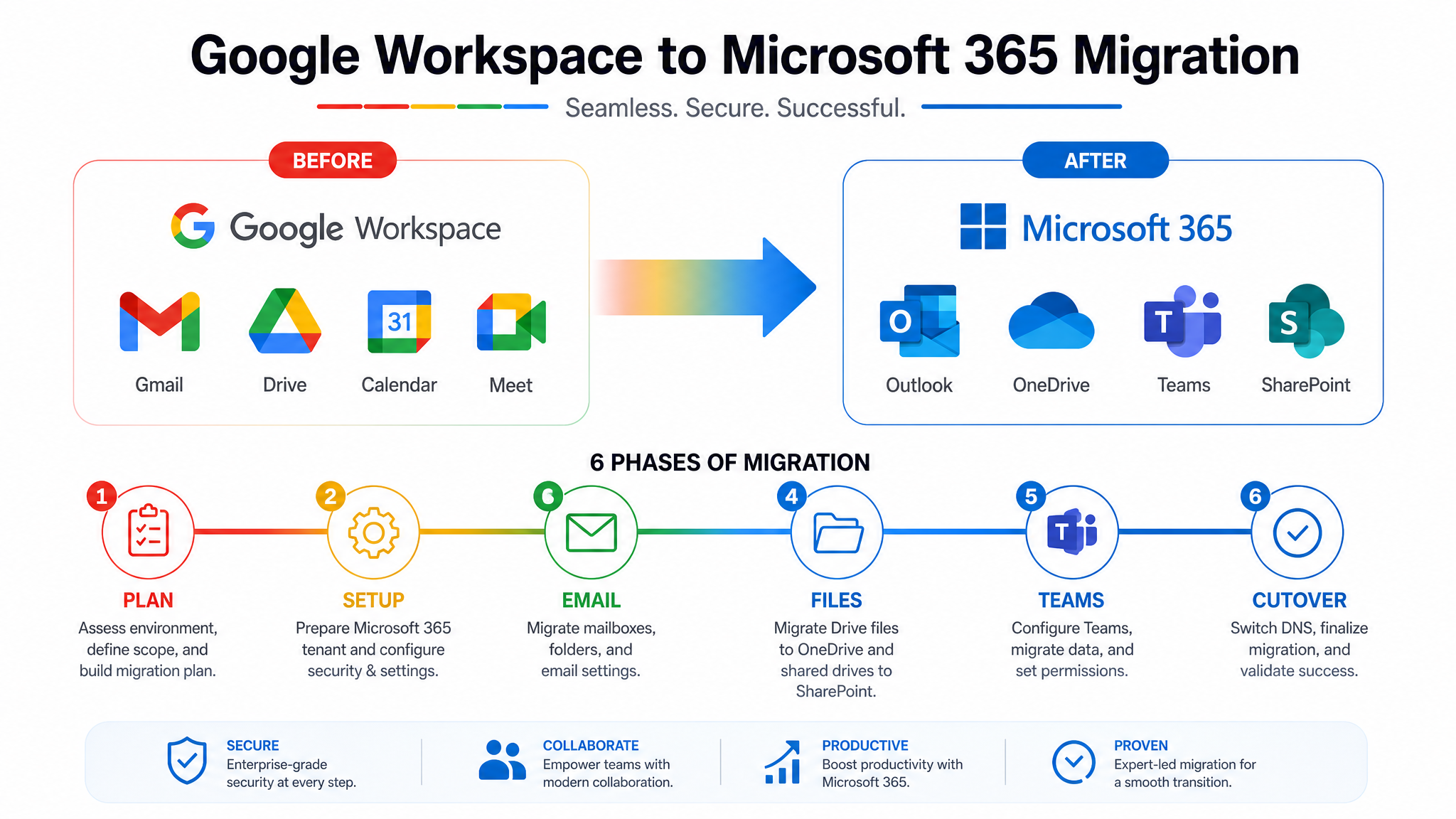
A Google Workspace to Microsoft 365 migration is the process of moving an organisation’s email, calendars, contacts, files, and collaboration workflows from Google’s cloud platform to Microsoft’s cloud platform.
The migration touches every part of how your organisation works:
- Email: Gmail to Exchange Online, including labels, filters, and signatures
- Calendars: Google Calendar to Outlook Calendar, including shared calendars and meeting rooms
- Files: Google Drive to OneDrive and SharePoint, including shared drives, folder structures, and permissions
- Collaboration: Google Docs/Sheets/Slides to Word/Excel/PowerPoint with co-authoring
- Chat and Meetings: Google Chat/Meet to Microsoft Teams
- Identity: Google authentication to Azure AD (Entra ID) with single sign-on
- Third-party apps: Integrations with CRM, ERP, or line-of-business systems
This is not a simple data transfer. This migration changes how users work. The interface, shortcuts, file locations, and collaboration habits all shift. Planning for user adoption is as important as the technical migration.
Why Organisations Make the Switch
Organisations outgrow Google Workspace for several reasons. The triggers we see most often:
| Trigger | Why Microsoft 365 Wins |
|---|---|
| Enterprise security requirements | Microsoft Purview, Defender, and Conditional Access exceed Google’s native capabilities |
| Compliance and governance | Australian government, healthcare, and financial regulators prefer Microsoft’s audit and retention tools |
| Microsoft ecosystem integration | Organisations using Dynamics 365, Power Platform, or Azure need native integration |
| Advanced collaboration | Teams combines chat, meetings, files, and apps in one place; Google’s equivalent is fragmented |
| AI and Copilot readiness | Microsoft Copilot requires Microsoft 365; Google’s Duet is a different ecosystem |
| Scalable identity management | Azure AD handles complex hybrid identity, conditional access, and device management at enterprise scale |
Evocate migrated VendorPanel + Unimarket. ANZ’s largest procurement platform. from Google Workspace to Microsoft 365 in 2025. The project consolidated email, collaboration, identity, licensing, and an existing Azure subscription into one unified Microsoft environment. VendorPanel selected Evocate through a three-round competitive tender against ten of APAC’s best Microsoft consultancies.
How Microsoft 365 Helps After Migration
Migration delivers more than feature parity. A successful migration unlocks new capabilities:
For IT Administrators
- Unified admin centre: Manage email, files, devices, and security from one dashboard
- Conditional access: Enforce MFA, device compliance, and location-based restrictions
- Automated compliance: Retention policies, eDiscovery, and audit logs reduce manual work
- Scalable identity: Azure AD handles thousands of users, guest access, and hybrid scenarios
For End Users
- Familiar Office apps: Word, Excel, and PowerPoint with full desktop functionality
- Teams as a hub: Chat, meetings, files, and apps in one interface
- Intelligent search: Find content across email, SharePoint, and Teams with AI-powered relevance
- Offline access: OneDrive syncs files locally; Google Drive’s offline support is more limited
For Security and Compliance
- Microsoft Defender: Anti-phishing, safe attachments, and safe links protect email
- Purview information protection: Sensitivity labels and DLP policies prevent data leakage
- Entra ID: Risk-based conditional access and identity protection
- Essential Eight alignment: Microsoft 365 controls map directly to ACSC requirements
How to Migrate Yourself: A Roadmap
You can manage a migration yourself if your organisation is small and requirements are simple. This is how we do it.
Phase 1: Pre-Migration Planning (3 to 4 weeks)
- Audit your Google environment: Document users, shared drives, calendars, and third-party integrations
- Map the target architecture: Plan OneDrive for personal files, SharePoint for team files, and Teams for collaboration
- Clean up before moving: Delete stale accounts, archive old projects, and deduplicate files
- Plan identity: Decide whether to use Azure AD Connect for hybrid identity or cloud-only accounts
- Communicate early: Tell users what is changing, when, and what training is available
Phase 2: Identity and Licensing Setup (1 to 2 weeks)
- Create Microsoft 365 tenant: Configure domains, DNS records (MX, SPF, DKIM, DMARC), and admin accounts
- Provision licences: Assign Microsoft 365 licences to all users
- Configure Azure AD: Set up user accounts, groups, and conditional access policies
- Install Microsoft 365 apps: Deploy Outlook, Word, Excel, PowerPoint, Teams, and OneDrive to all devices
Phase 3: Email Migration (2 to 4 weeks)
- Use Google Workspace Migration for Microsoft 365: Microsoft’s free tool migrates email, calendar, and contacts
- Set up coexistence: Configure dual delivery so email reaches both platforms during transition
- Migrate in batches: Start with a pilot group, then expand by department
- Update MX records: Switch mail flow to Exchange Online once migration is verified
- Train users on Outlook: Focus on differences from Gmail. folders versus labels, rules versus filters, calendar sharing
Phase 4: File Migration (3 to 6 weeks)
- Map shared drives to SharePoint: Each Google shared drive becomes a SharePoint site or document library
- Use migration tools: SPMT (SharePoint Migration Tool) or third-party tools like ShareGate or Mover
- Preserve permissions: Map Google sharing settings to SharePoint permissions
- Handle Google Docs: Convert Google Docs to Word format, Sheets to Excel, Slides to PowerPoint
- Train users on OneDrive and SharePoint: Explain sync, sharing links, and version history
Phase 5: Teams and Collaboration Rollout (2 to 4 weeks)
- Create Teams and channels: Map Google Chat spaces and project groups to Teams structures
- Migrate chat history: Google Chat history does not migrate directly. We export important conversations
- Configure Teams meetings: Set up audio conferencing, meeting rooms, and Teams Phone if needed
- Train users on Teams: Focus on chat, file sharing, meetings, and app integrations
Phase 6: Cutover and Optimisation (2 to 3 weeks)
- Decommission Google Workspace: Cancel subscriptions once all data is verified migrated
- Monitor and support: Run a hypercare period with dedicated support for user issues
- Optimise governance: Apply retention policies, sensitivity labels, and site lifecycle rules
- Measure adoption: Track active users, file activity, and Teams usage to confirm value
When to Bring in a Specialist
Self-managed migrations work for organisations under 50 users with simple file structures. Most organisations benefit from expert help because:
- Email cutover is high-risk: A misconfigured MX record or migration error means lost mail
- File permissions are complex: Google Drive sharing does not map cleanly to SharePoint permissions
- Google Docs conversion breaks: Complex formatting, embedded images, and add-ons often need manual fixing
- User adoption determines success: Technical migration is 50% of the job; user training and change management is the other 50%
- Integration reconfiguration: Third-party tools connected to Google need reconnection to Microsoft
Evocate’s approach to Google Workspace migration:
- Discovery and assessment: We audit your Google environment, identify risks, and deliver a fixed-price migration plan
- Phased migration: Email first, then files, then collaboration tools. each phase validated before the next
- Permission mapping: We translate Google sharing to Microsoft permissions accurately, preserving access controls
- User training: We run training sessions for Outlook, OneDrive, SharePoint, and Teams tailored to your workflows
- Hypercare support: Dedicated support during the first 30 days post-migration to resolve issues quickly
Our VendorPanel + Unimarket migration was completed with zero data loss and minimal downtime. The platform handles nearly 70% of ANZ government tenders. any disruption would have been critical. We won the engagement through a three-round competitive tender against ten APAC consultancies.
Migrations Evocate Has Delivered
Every migration is different. These are some of the platform switches and Microsoft 365 migrations Evocate has completed:
- VendorPanel + Unimarket: Google Workspace to Microsoft 365 for ANZ’s largest tender and procurement platform. Consolidated email, collaboration, identity, Azure, and licensing. Won through a three-round competitive tender against ten APAC consultancies. Zero data loss, minimal downtime.
- Penske: 12 TB SharePoint migration across Australia, New Zealand, and India. Complex multi-site, multi-region migration with thousands of users.
- Perilya: Consolidated fragmented file servers and Microsoft 365 environments for the mining company. On-premises to cloud migration with governance.
- Allianz: Digital transformation services agreement for the financial services organisation, including Microsoft 365 migration and security hardening.
- Myhealth Medical Group: Moved the healthcare group to Microsoft 365 with theHub SharePoint intranet and managed services. Strict compliance requirements for patient data.
- Rockfield Technologies: Full ICT discovery and Microsoft 365 migration for the engineering consultancy.
Call 1300 386 228 or request a migration assessment to discuss your Google Workspace environment.
Related Reading
- SharePoint Migration from On-Premises: A Complete Guide for 2026: If you are also moving from on-premises SharePoint, this guide covers the SharePoint-specific side of the migration.
- Microsoft Copilot Readiness: Is Your Tenant Actually Ready?: After migrating to Microsoft 365, assess your tenant before enabling Copilot. Permissions set up during migration need validation.
No, if planned correctly. We configure dual delivery so email reaches both Google and Microsoft during transition. MX records switch only after verification. Microsoft’s migration tool preserves email, attachments, labels, and read/unread status.
Google Docs, Sheets, and Slides are converted to Microsoft formats during migration. Simple documents convert cleanly. Complex formatting, embedded scripts, and third-party add-ons may need manual review. We test conversion quality during the pilot phase.
Each Google shared drive maps to a SharePoint site or document library. Permissions are recreated in SharePoint’s permission model. We avoid deep folder hierarchies. SharePoint works best with a flat structure and metadata.
Yes. A typical approach is: migrate email first with dual delivery, then files in parallel, then cut over collaboration tools. Users access both platforms during transition, with clear guidance on which to use for what.
A 50-user organisation with simple requirements takes 6 to 8 weeks. A 500-user organisation with complex file structures and custom integrations takes 4 to 6 months. The assessment defines the timeline accurately.