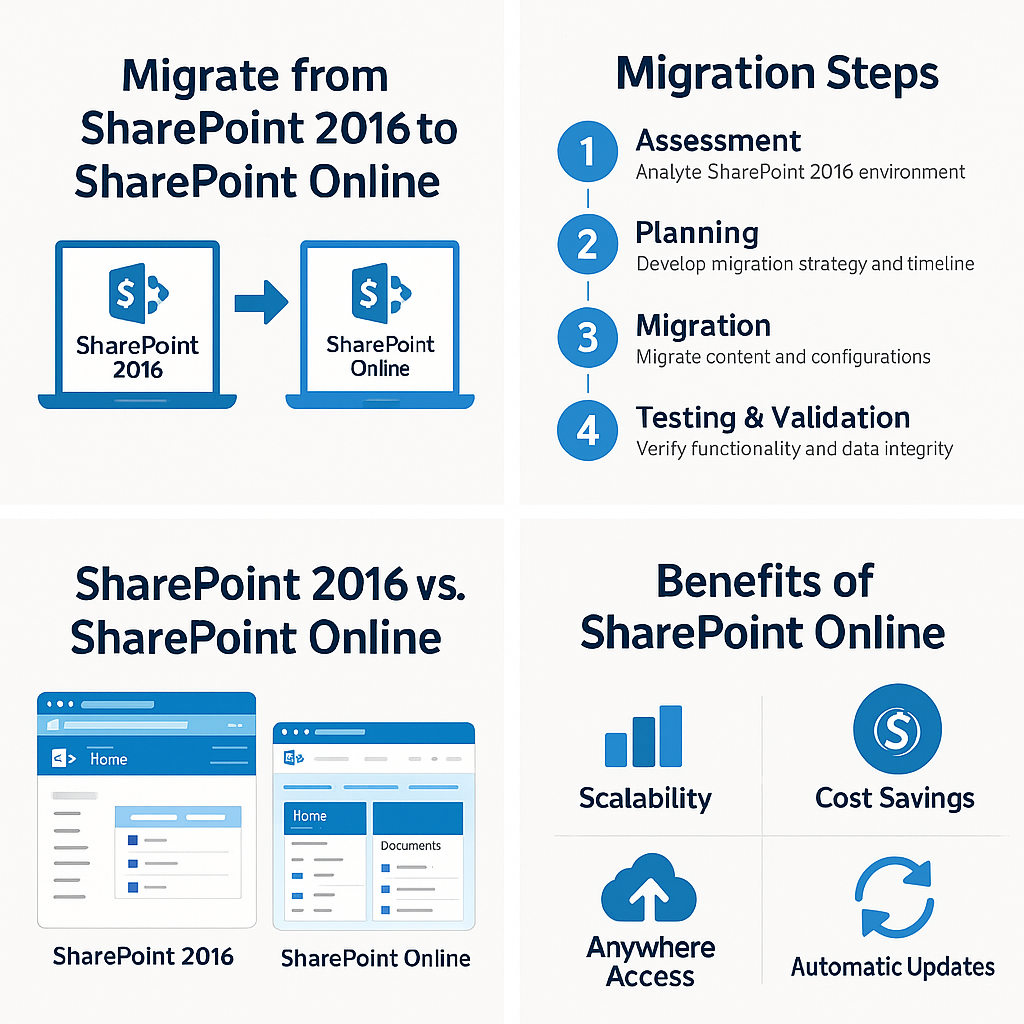
SharePoint Server 2016 has reached the end of the road for modern work. Now is the time to move to SharePoint Online to stay secure, compliant, and productive.
If you’re running on-premises SharePoint, you’re carrying growing security, support, and cost risks. This article outlines a practical path to migrate with confidence.
Why organisations should move now
SharePoint 2016 is out of mainstream support and approaching end of extended support. In real terms, that means fewer fixes, rising security exposure, and increasing effort to keep the platform stable. Cloud services like SharePoint Online receive continuous security updates, new features, and tighter integrations across Microsoft 365 (M365).
Reduce risk: Ongoing security patches and built-in resilience.
Lower total cost: Retire servers, storage, backups, and upgrade projects.
Enable hybrid and remote work: First-class web and mobile experiences.
Unlock new capability: Automation, search, Viva connections, and Microsoft Teams integration.
What you gain with SharePoint Online
Security and compliance by design: Conditional Access, multifactor authentication (MFA), and data loss prevention (DLP) via Microsoft Purview.
Modern collaboration: Team sites, communication sites, and seamless co-authoring with Office on the web.
Automation and insights: Power Automate for workflows and Microsoft Search for better discovery.
Integration with Teams: Files, pages, and lists surface directly inside Microsoft Teams.
Key risks of staying on SharePoint 2016
Security gaps: Lack of new patches and harder antivirus/EDR coverage.
Compatibility issues: Modern browsers and Office apps evolve faster than your server platform.
Hidden costs: Hardware refresh, backup, DR, and patching cycles consume budget and staff time.
Compliance exposure: Harder to meet Australian privacy and industry obligations without current controls.
A practical migration approach
1) Baseline and inventory
Catalogue site collections, subsites, custom solutions (WSPs), workflows (including SharePoint Designer and InfoPath), content databases, size, and permissions. Identify business-critical areas and any records retention requirements.
2) Readiness and design
Define your information architecture for the cloud: hub sites, site templates, document libraries, and metadata. Decide how Teams, OneDrive, and SharePoint will work together. Plan security: Azure AD groups, Conditional Access, and sensitivity labels.
3) Choose tooling
Use Microsoft’s SharePoint Migration Tool (SPMT) for standard file and site moves, and consider third-party tools (e.g., ShareGate) for complex permissions, large deltas, or classic customisations. Establish a cutover or phased approach with pilot groups.
4) Clean up and modernise
Archive stale content, remove orphaned users, and decommission unused sites. Replace legacy workflows with Power Automate and review custom web parts that don’t translate to modern sites.
5) Migrate, validate, and optimise
Run test migrations, verify permissions and metadata, then schedule the production move. Communicate freeze windows and provide training. Post-migration, modernise pages, configure search, and enable lifecycle policies.
Governance, security, and compliance in the cloud
Access control: Use Azure AD security groups, least-privilege permissions, and review sharing reports.
Data protection: Apply sensitivity labels, retention policies, and DLP rules with Microsoft Purview.
External sharing: Configure organisation-wide policies and guest access reviews.
Backup and recovery: Leverage recycle bins, versioning, and consider third-party backup if your risk profile demands point-in-time recovery by workload.
Licensing and cost considerations
Most organisations will find needed features within Microsoft 365 Business Premium or Microsoft 365 E3, with E5/Purview add-ons for advanced compliance. Factor in reduced on-premises infrastructure, maintenance, and backup costs, plus the productivity gains of modern collaboration. If you already licence M365, SharePoint Online may be included—accelerating ROI.
Migration timeline guide
2–4 weeks: Discovery, design, governance decisions, and pilot.
4–8 weeks: Iterative migrations by department, training, and change management.
1–2 weeks: Cutover, validation, and decommission plan.
Smaller environments can complete faster; complex customisations, large media libraries, or strict compliance requirements will extend timelines.
Common pitfalls to avoid
Migrating everything “as-is” without cleaning up ROT (redundant, outdated, trivial) content.
Ignoring permission redesign, leading to oversharing or broken access.
Leaving legacy workflows and InfoPath forms unaddressed until after cutover.
Skipping change management and training—users need to know what’s changing and why.
How Evocate can help
Evocate helps Australian companies plan and execute smooth, low-risk SharePoint migrations. We combine technical depth with pragmatic change management to keep your business running throughout the move.
Most small environments complete in 6–10 weeks, including planning and training. Larger datasets or heavy customisations can extend the timeline. A pilot helps validate estimates.
Will our customisations and InfoPath forms work in SharePoint Online?
Classic customisations and InfoPath forms rarely migrate one-to-one. Plan to modernise with SharePoint Framework (SPFx), Power Apps, and Power Automate. Prioritise business-critical solutions first.
What about bandwidth and after-hours cutover?
Pre-seed data, run incremental (delta) migrations, and schedule final cutover after-hours. Throttle jobs to match available bandwidth and user impact windows.
How does SharePoint Online work with Microsoft Teams?
Teams stores files in SharePoint. Use Teams for conversations and meetings, and SharePoint for document management, pages, and lists—designed to work together.
Can we keep some content on-premises?
Yes. A hybrid approach may suit specific workloads or regulatory needs, but aim to minimise on-premises scope to reduce complexity and cost.
If you’re weighing timelines or want an assessment of your SharePoint 2016 estate, we’re here to help. Get in touch via the contact form or email sales@evocate.com.au.