
Bring brand consistency and faster content creation to Microsoft 365 by setting up SharePoint Organisation Asset Libraries and enabling them for Microsoft Copilot.
If your team is hunting for logos, reusing outdated templates, or storing images in ad‑hoc folders, it’s time to centralise. Organisation Asset Libraries (OALs) put approved visuals and templates at everyone’s fingertips, and Copilot can surface them right when people are creating content.
What are Organisation Asset Libraries?
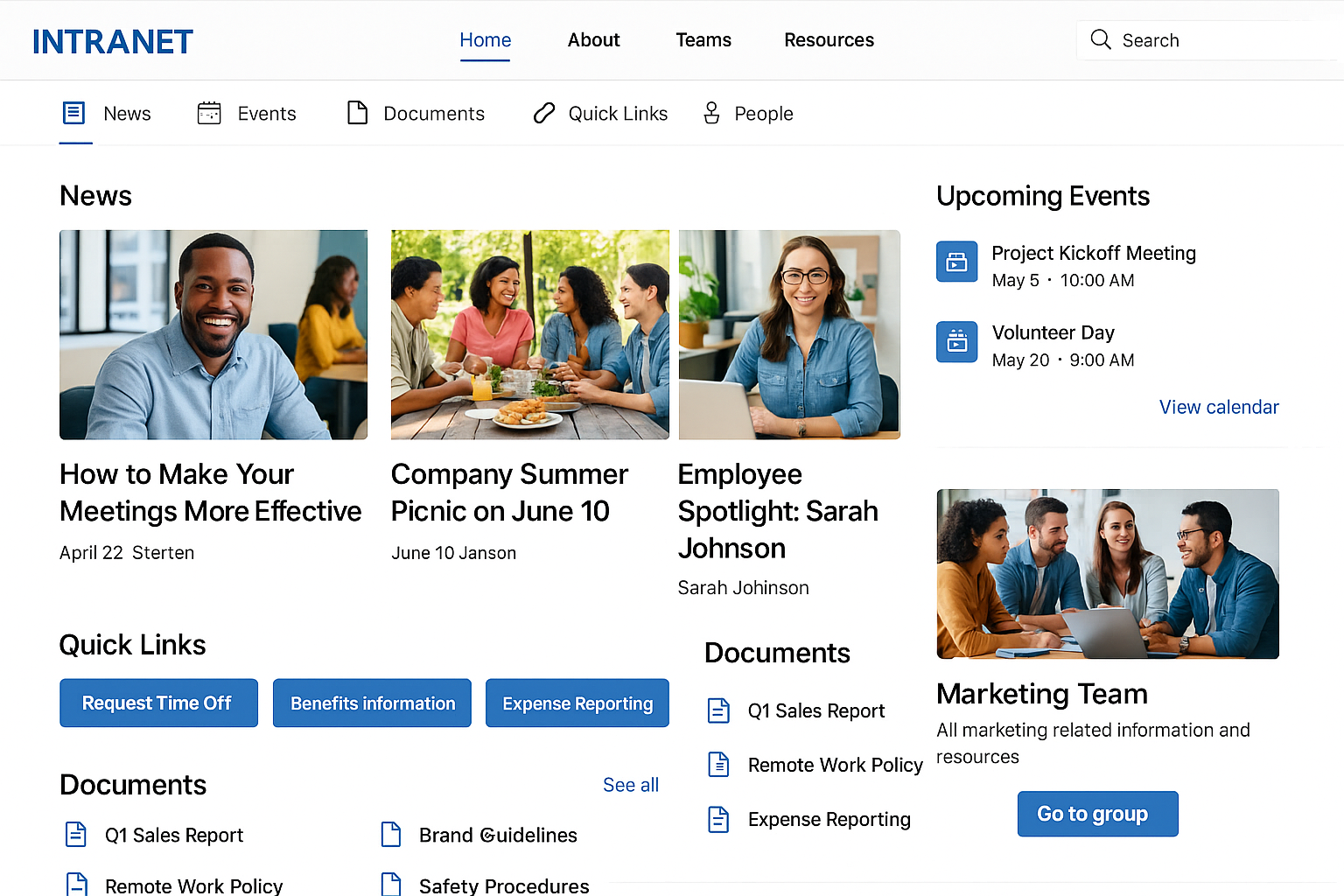
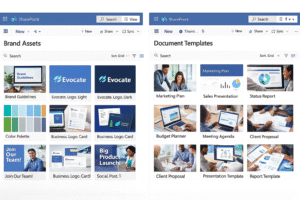
Organisation Asset Libraries are special SharePoint Online libraries designated to hold brand‑approved images, Office templates, and fonts. Once configured, these assets become easily discoverable across SharePoint and Office apps like Word and PowerPoint—and are eligible for use by Copilot. Assets are delivered via Microsoft’s tenant‑scoped content delivery network (CDN) for performance, while respecting permissions and governance.
Common OAL types include:
- Images (logos, photography, icons)
- Office templates (PowerPoint, Word, Excel)
- Fonts (where licensed and permitted)
Why SMBs should adopt this now
- Brand consistency: Ensure everyone uses the latest logos, imagery, and templates—reducing the risk of off‑brand documents and decks.
- Centralised access: Provide a single, secure location for approved assets, accessible from SharePoint, Office apps, and Copilot.
- Time savings: Stop the search. Employees spend less time hunting and more time producing quality content. Copilot can suggest the right asset in the flow of work.
- Improved governance: Control who can upload and approve assets, apply metadata and tagging, and meet compliance requirements.
- Better ROI on design spend: Maximise the value of brand investments by making assets easy to find and use.
Quick setup in SharePoint Online
Prerequisites
- SharePoint Administrator (or Global Administrator) permissions.
- SharePoint Online Management Shell installed.
- Libraries created in a suitable SharePoint site (for example: Images, Templates, Fonts).
Steps at a glance
- Prepare your libraries: Create or choose dedicated libraries for images, templates, and fonts. Add clear folder structures and metadata (e.g., brand, campaign, usage rights).
- Connect to SharePoint Online PowerShell: Using the SharePoint Online Management Shell, sign in with administrator credentials.
- Designate each library as an Organisation Asset Library: Use the Add-SPOOrgAssetsLibrary command to register the library and specify the asset type (ImageDocumentLibrary, OfficeTemplateLibrary, or TenantWideExtension).
- Enable the Office 365 CDN when prompted: This improves performance without exposing assets publicly; it’s tenant‑scoped and respects permissions.
- Test in Office apps: In Word or PowerPoint, insert images or templates and confirm you can browse your organisation’s assets.
For full guidance, see Microsoft’s Organisation assets overview and Add-SPOOrgAssetsLibrary reference.
Enable your assets for Microsoft Copilot
When you enable OALs for Copilot, the assistant can recommend brand‑approved images and templates while drafting documents and presentations. Copilot uses context from your prompt and content to suggest relevant assets, speeding up creation while keeping everything on‑brand.
- Licensing and access: Ensure users have Copilot for Microsoft 365 licences assigned and access to the relevant asset libraries.
- Confirm indexing: SharePoint content should be searchable so Copilot can discover it based on permissions.
- Follow Microsoft’s enablement steps: Configure organisation assets for Copilot so they appear as suggestions in Word and PowerPoint experiences. See Organisation assets for Copilot.
- Adopt metadata and naming: Add descriptive titles, alt text, and tags so Copilot can make better contextual picks.
- Prompt clearly: For example, “Use our latest blue logo from organisation assets and apply the sales deck template.”
Governance, security, and findability best practices
- Ownership and approvals: Assign owners (e.g., Marketing) and set contributor vs. reader permissions. Use approval flows for new or updated assets.
- Metadata matters: Tag assets with product, campaign, usage rights, expiry, and image orientation. This improves search and Copilot recommendations.
- Lifecycle management: Archive or retire superseded logos and templates. Use retention and sensitivity labels via Microsoft Purview to reinforce compliance.
- Performance and security: The tenant CDN accelerates delivery without exposing assets publicly. Review CDN configuration and audit access regularly.
- User guidance: Publish a short “how to” guide on where to find assets and how to request changes.
How Evocate can help
Evocate partners with Australian SMBs to design and operationalise Organisation Asset Libraries that actually get used. We can:
- Plan your information architecture, metadata, and branding taxonomy in SharePoint Online.
- Set up OALs, approvals, and governance, and integrate them with Microsoft Copilot.
- Apply sensitivity and retention controls with Microsoft Purview.
- Train users and create “brand kit” guidance embedded in your Microsoft 365 apps.
- Provide ongoing optimisation through Managed Services.
Ready to standardise your brand and accelerate content creation? Get in touch or email sales@evocate.com.au.
FAQs
How is an Organisation Asset Library different from a regular library?
It’s a standard SharePoint library that’s registered as a tenant‑wide asset source. Once registered, assets are available across Office apps (and Copilot) with boosted discovery and performance.
Is the CDN public? Will our assets be exposed?
No. The Office 365 CDN used for organisation assets is tenant‑scoped and honours permissions. Users only see what they’re allowed to access.
What licences do we need for Copilot integration?
Users need Copilot for Microsoft 365 licences. SharePoint Online is required for the asset libraries themselves. Standard Microsoft 365 licensing applies to storage and access.
Who should manage the libraries?
Typically Marketing (brand owners) manage content, while IT configures the libraries, CDN, and governance. Use clear ownership, contributor roles, and approval workflows.
How many asset libraries can we have?
You can register multiple libraries (e.g., images and templates). Keep the design simple—too many libraries can confuse users and reduce adoption.
Resources
- Organisation assets library overview
- Organisation assets for Copilot
- Add-SPOOrgAssetsLibrary PowerShell
If you’d like practical help configuring OALs and Copilot, reach the Evocate team via our contact form or email sales@evocate.com.au. We’re here to help Australian SMBs make Microsoft 365 work harder.